Getting started
What you need
- WordPress 6.2 or later, on PHP 7.4 or later.
- An AWS account, and an S3 bucket in it. The wizard links straight to the console to make one.
- Optional, but recommended: a CloudFront distribution in front of the bucket. It lets the bucket stay private and serves media faster.
Stowaway uses no AWS SDK and needs no Composer, so there is nothing extra to install on the server.
Install
- Install and activate Stowaway from Plugins → Add New. Until it is listed on WordPress.org, upload the zip under Plugins → Add New → Upload Plugin.
- Go to Settings → Stowaway and follow the setup wizard: access keys, bucket, then CloudFront.
- To copy media you uploaded before Stowaway, use Offload Existing Media on the same screen.
Stowaway does nothing until it has keys and a bucket. Activating it on a live site is safe.
Step 1: Access keys
Stowaway needs an access key for an AWS user that may use your bucket. Make a user just for this site, so its key can only ever touch media. Never use your AWS account’s root keys.
- In the AWS console, open IAM → Users → Create user. Name it after the site, e.g.
stowaway-example-com. Leave console access off. - On the permissions page choose Attach policies directly, then Create policy. Switch the editor to JSON, paste in the policy below with your bucket’s name in place of
your-bucket-name, and save it. Back on the user, attach the new policy. - Open the new user, go to Security credentials, and choose Create access key. Pick Application running outside AWS.
- Copy the access key ID and secret access key into the wizard. AWS only shows the secret once.
{
    "Version": "2012-10-17",
    "Statement": [
        {
            "Sid": "PickBucketInStowaway",
            "Effect": "Allow",
            "Action": ["s3:ListAllMyBuckets"],
            "Resource": "*"
        },
        {
            "Effect": "Allow",
            "Action": ["s3:ListBucket"],
            "Resource": "arn:aws:s3:::your-bucket-name"
        },
        {
            "Effect": "Allow",
            "Action": ["s3:GetObject", "s3:PutObject", "s3:DeleteObject"],
            "Resource": "arn:aws:s3:::your-bucket-name/*"
        }
    ]
}
The first statement, s3:ListAllMyBuckets, is optional. It
lets the wizard list your buckets; without it you type the bucket name
instead. The wizard shows this policy too, with your bucket’s
name already filled in.
Keys are checked with AWS before they are saved. Wrong keys are refused on the spot; keys that are right but lack a permission are accepted, and the connection test says which one is missing.
Keeping keys out of the database
Keys saved in the wizard live in the database, and so in every
database backup. To keep them out, define them in
wp-config.php instead, above the line that says
“That’s all, stop editing!”. The wizard then skips
this step.
define( 'STOWAWAY_ACCESS_KEY_ID', 'your-access-key-id' );
define( 'STOWAWAY_SECRET_ACCESS_KEY', 'your-secret-access-key' );
When these are set, Stowaway never stores keys in the database. If
neither these nor saved keys exist, it falls back to WP Offload
Media’s AS3CF_SETTINGS constant, if you have one.
Step 2: Bucket
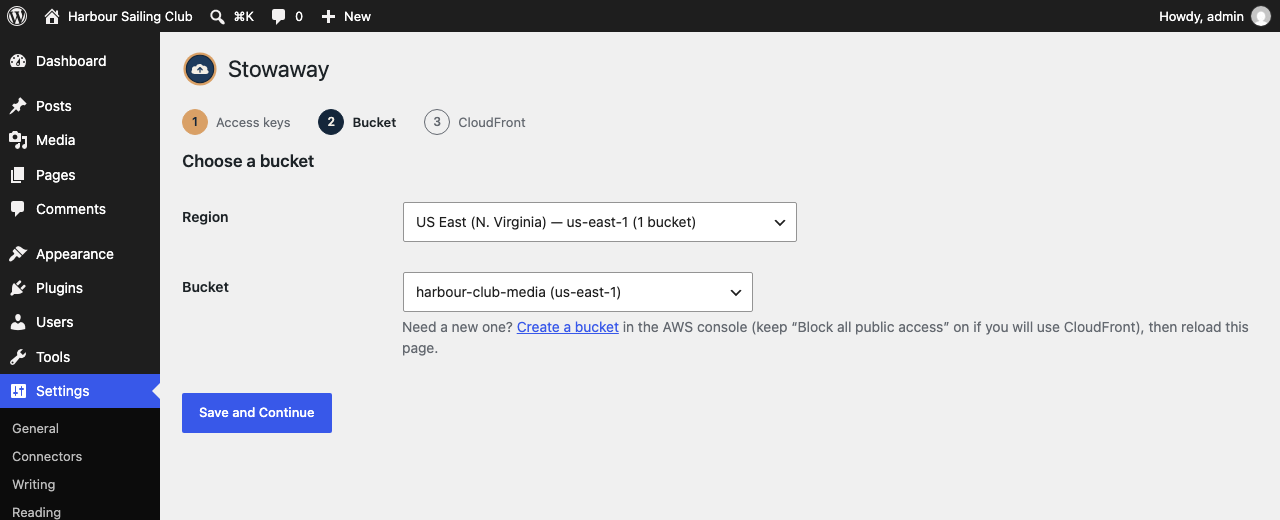
Pick the region, then the bucket, from dropdowns filled in from your AWS account. Stowaway asks S3 where the bucket really lives and corrects the region if it doesn’t match, so a wrong guess can’t send uploads to the wrong endpoint.
No bucket yet? Create one in the S3 console, in the region closest to most of your visitors, then reload the wizard. If you’ll use CloudFront, keep Block all public access on: CloudFront reads the bucket on your visitors’ behalf, so nobody else needs to.
media.example.com)
work, but S3 has to address them with path-style URLs. A name with
dashes instead avoids the question entirely.
Step 3: CloudFront
CloudFront delivers your media from servers close to each visitor, and lets the bucket stay private. Without it, media is served straight from S3, which only works if the bucket allows public reads. You can skip this step and come back to it.
- In the AWS console, open CloudFront → Create distribution.
- For the origin, choose your bucket. For origin access choose Origin access control settings, and create a control setting with the defaults.
- Leave the other settings as they are and create the distribution. AWS then shows a bucket policy to copy: paste it into the bucket’s Permissions → Bucket policy.
- Copy the distribution’s domain name (like
d1234abcd.cloudfront.net) into the wizard.
Want media on your own subdomain, like
media.example.com? Add it to the distribution as an
alternate domain name with a certificate from AWS Certificate Manager,
point a CNAME at the distribution, and give Stowaway that domain
instead. Media is always served over HTTPS.
A new distribution takes a few minutes to deploy. If the connection test can’t load the file through CloudFront right away, wait and run it again.
Connection test
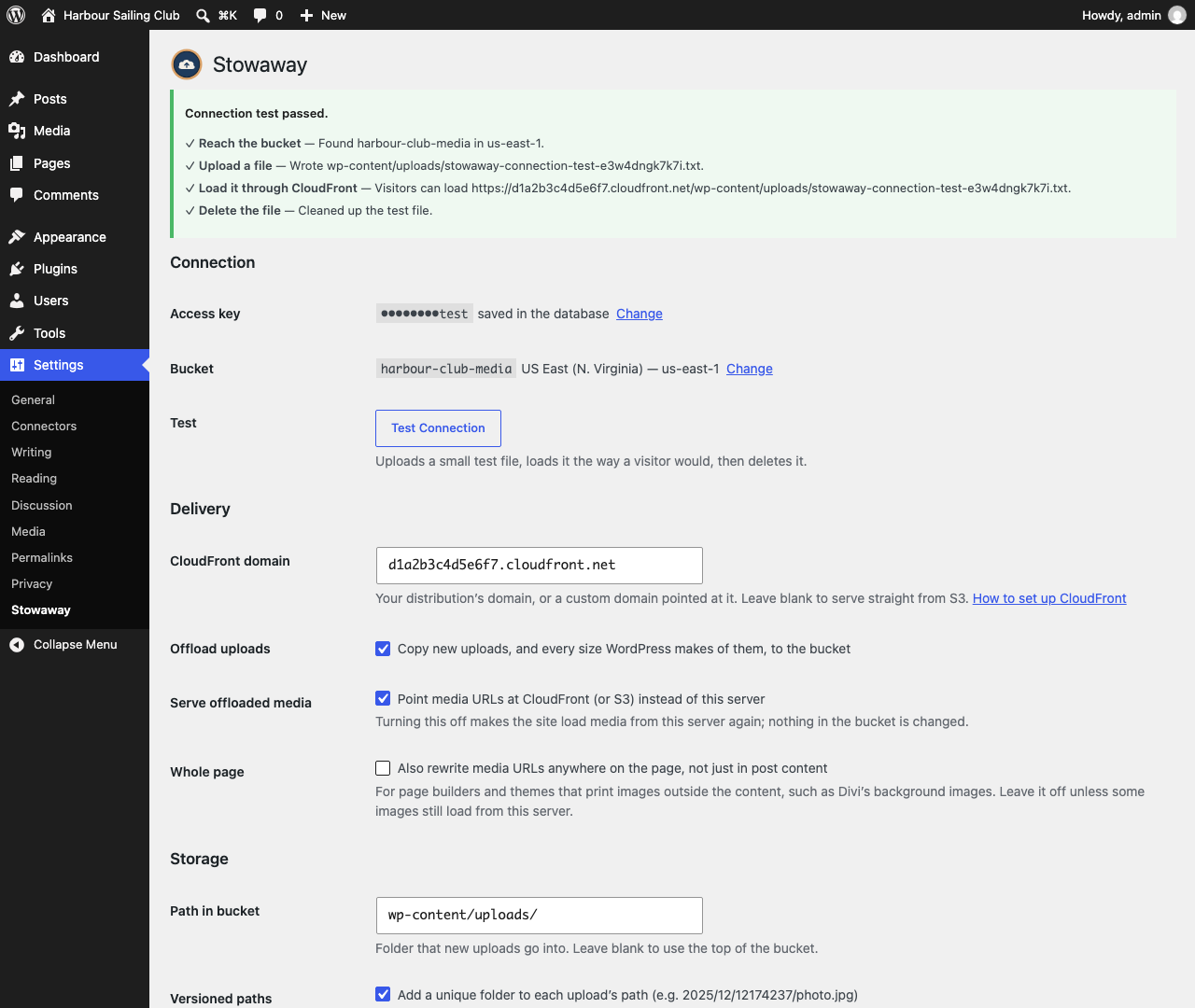
Finishing the wizard runs the connection test, and Test Connection on the settings screen runs it again at any time. It walks the whole path a real upload takes:
| Step | What it checks | If it fails |
|---|---|---|
| Reach the bucket | The keys work and can see the bucket. | Usually a missing s3:ListBucket, or the wrong bucket name or region. |
| Upload a file | Writes a small test file into the bucket. | The policy needs s3:PutObject on the bucket’s objects. |
| Load it through CloudFront (or from S3) | Fetches the file the way a visitor’s browser would. | See Troubleshooting: usually origin access or the bucket policy. |
| Delete the file | Removes the test file again. | The policy needs s3:DeleteObject. Remove the test file by hand. |
The results say exactly which step failed and why. Quoting them in a support request saves a round of questions.
Offloading existing media
New uploads go to the bucket on their own. Media uploaded before Stowaway was set up stays on your server until you offload it.
On Settings → Stowaway, use Offload Existing Media. It works through the library in short batches with a progress bar, uploading every size of every file the bucket doesn’t have yet. Keep the page open until it finishes. If you close it, run it again later: it picks up where it left off.
A file that fails is skipped rather than stopping the run, marked in the Media Library with the reason, and tried again on the next run.
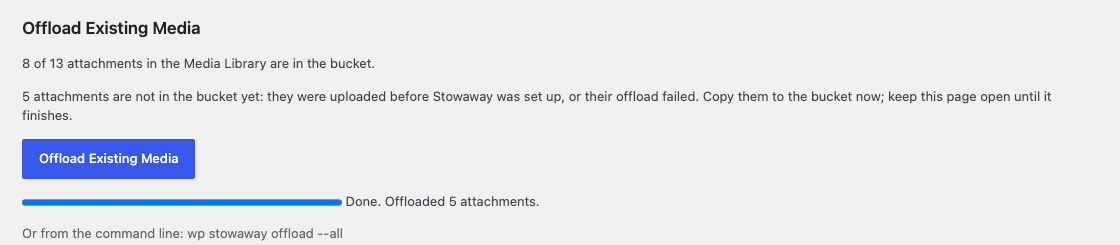
For big libraries the command line is faster, and doesn’t need a
browser tab open: wp stowaway offload --all. See
WP-CLI.
In the Media Library
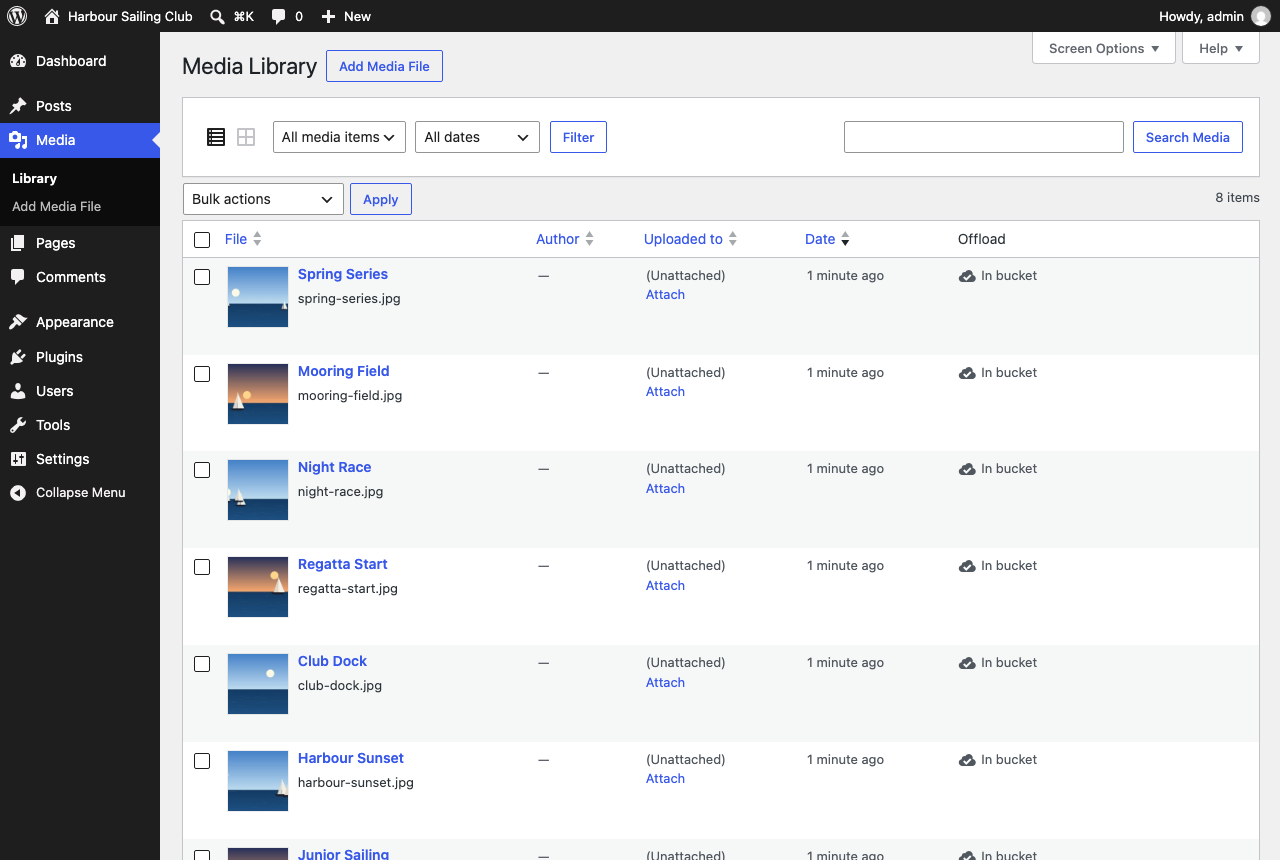
The list view of Media → Library gains an Offload column:
- In bucket
- Every size of the file is in the bucket, and visitors load it from there.
- N files still to upload
- Some sizes aren’t in the bucket yet. Offload now uploads them.
- Error
- The last attempt failed, with AWS’s reason. Offload now tries again.
Select several files and choose Offload to S3 from the bulk actions to offload them together. The same status shows in each attachment’s details.
Deleting a file from the Media Library deletes it, and all its sizes, from the bucket.
Settings reference
Once the wizard is done, Settings → Stowaway is a plain settings screen. Change links reopen the keys and bucket steps.
| Setting | Default | What it does |
|---|---|---|
| CloudFront domain | Empty | Your distribution’s domain, or a custom domain pointed at it. Leave blank to serve straight from S3. |
| Offload uploads | On | Copy new uploads, and every size WordPress makes of them, to the bucket. |
| Serve offloaded media | On | Point media URLs at CloudFront (or S3) instead of your server. Turning it off makes the site load media from your server again; nothing in the bucket changes. |
| Whole page | Off | Also rewrite media URLs anywhere on the page, not just in post content. For page builders and themes that print images elsewhere, such as Divi’s background images. Leave it off unless some images still load from your server. |
| Path in bucket | wp-content/uploads/ | Folder that new uploads go into. Leave blank to use the top of the bucket. |
| Versioned paths | On | Adds a unique folder to each upload’s path, e.g. 2025/12/12174237/photo.jpg. A replaced file then gets a new URL, so browsers and CloudFront never show the old one, and media can be cached for a year. |
Changing Path in bucket or Versioned paths affects new uploads only. Files already offloaded keep the path they were stored under.
Moving from WP Offload Media
Stowaway reads the settings and offload records that WP Offload Media (Lite or Pro) left in your database. Media offloaded with it keeps its exact URLs, versioned folders included, and nothing is uploaded again. Page caches, page builders’ cached CSS and old links in emails all keep working.
- Back up the database.
- Install and activate Stowaway. It does nothing until the import runs.
- Deactivate WP Offload Media. Don’t delete it yet: it is your way back. Running both at once means double uploads and two URL rewriters.
- On Settings → Stowaway, choose Import from WP Offload Media, with its settings box ticked. This brings over the bucket, region, path, CloudFront domain and every offload record.
- Run Test Connection. If Reach the bucket fails with access denied, the old key needs
s3:ListBucket: see the policy. - Check a few pages in a private window. Image URLs should be on your CloudFront domain, exactly as before.
- Run Offload Existing Media to pick up anything uploaded since WP Offload Media stopped running.
Stowaway uses the keys in WP Offload Media’s
AS3CF_SETTINGS constant until you give it its own, so no
wp-config.php edit is needed on the day. Once you’re
happy, move the keys to Stowaway’s own
constants, remove AS3CF_SETTINGS, and delete WP
Offload Media.
To roll back, deactivate Stowaway and reactivate WP Offload Media. Media uploaded in between loads from your server, which works.
Private (signed URL) items aren’t imported, and nor are records whose attachment has since been deleted.
WP-CLI
wp stowaway status- What is configured (bucket, delivery, where the keys come from) and how many attachments are offloaded.
wp stowaway offload --all- Offload every attachment not yet in the bucket. Or name them:
wp stowaway offload 123 124. Only files the bucket doesn’t have are uploaded. wp stowaway import-wpom [--skip-settings]- Import from WP Offload Media. Safe to run more than once.
--skip-settingsimports only the offload records, not the bucket and delivery settings.
For developers
stowaway_object_headers
Filters the headers stored with each object as it is uploaded. By
default that is Content-Type, and a
Cache-Control of one year (immutable) with versioned
paths, or one day without.
add_filter( 'stowaway_object_headers', function ( $headers, $name, $attachment_id ) {
    // Offer PDFs as downloads rather than opening them in the browser.
    if ( 'pdf' === strtolower( pathinfo( $name, PATHINFO_EXTENSION ) ) ) {
        $headers['Content-Disposition'] = 'attachment';
    }
    return $headers;
}, 10, 3 );
stowaway_s3_url
Filters the S3 API URL of the bucket or an object. Use it to route requests through an S3 VPC or FIPS endpoint, or to point Stowaway at a local S3-compatible emulator in tests. The path must stay URI-encoded.
add_filter( 'stowaway_s3_url', function ( $url, $key, $bucket, $region ) {
    // A local S3 emulator, path-style.
    return 'http://localhost:9000/' . $bucket . ( '' !== $key ? '/' . $key : '' );
}, 10, 4 );
Requests are signed with AWS Signature Version 4 by Stowaway itself
over wp_remote_request(). The secret key is never sent.
Deactivating and removing
Deactivating sends your site straight back to serving media from your own server. Posts store local URLs the whole time, and the local copies are still there, so nothing needs fixing.
Deleting the plugin also removes its settings and its table of offload records. The files in your bucket are left alone, and so is anything WP Offload Media left behind.
Troubleshooting
- Some images still load from my server
- The theme or page builder is printing them outside the post content. Turn on Whole page, then clear any page cache. Images that aren’t in the Media Library at all (a plugin’s own cache folder, say) aren’t Stowaway’s to move.
- “Reach the bucket” fails with Access Denied
- The key’s policy is missing
s3:ListBucketon the bucket itself (the ARN without/*), or names a different bucket. - “Load it through CloudFront” gets a 403
- CloudFront can’t read the bucket. Check the distribution’s origin is this bucket, that it uses Origin Access Control, and that the bucket policy AWS offered when you created the distribution is in place.
- “Load it from S3” gets a 403
- That is normal when the bucket blocks public access, which it should. Add a CloudFront domain; otherwise visitors would see broken images.
- An upload didn’t reach the bucket
- The Offload column says why, and its Offload now link tries again. A failing connection test usually points to the same cause.
- A replaced image still shows the old version
- With Versioned paths off, the new file has the old URL and CloudFront keeps its cached copy until it expires (a day by default). Turn versioned paths on for new uploads, or create an invalidation in CloudFront.
- Does it work on Multisite?
- It hasn’t been tested on Multisite yet.
Still stuck? Run Test Connection, copy the system report from the plugin’s Support tab, and send both to us.
Privacy and AWS
Stowaway connects your site to Amazon Web Services, using your own AWS account. Nothing is sent anywhere until you enter your keys.
- Amazon S3 stores your media. Your site sends it each file and every size, deletion requests when you delete files, bucket lookups during setup, and a small test file that is deleted again.
- Amazon CloudFront, if you use it, delivers the media. Visitors’ browsers load files from it, so it receives what any web server does: their IP address, browser details, and the address of the file.
Stowaway sends nothing to its author, and has no tracking or analytics. See the AWS Service Terms and AWS Privacy Notice.